
Jira

By: WorkLLMCreate, review, and manage Jira work through chat — without breaking focus.
Access Controls

Security

Permissions

Overview

WorkLLM connects securely to Jira so teams can interact with issues, tickets, and projects directly from chat. Instead of navigating boards, searching issues, or switching tools, users issue clear Jira commands through WorkLLM and keep their workflow moving. Every Jira interaction is explicit, permission-based, and fully traceable designed for teams that need speed and control.

Features

Natural language issue management

Create, update, and transition Jira issues just by describing what needs to happen in chat (e.g., “Create a bug in Project ABC with high priority and assign it to Meera”).

Smart search & filters

Ask questions like “Show me all critical bugs in the mobile app from this week” and let WorkLLM translate that into the right Jira search, across classic and next‑gen projects.

Sprint & Board Management

Start and complete sprints, move issues between columns, and adjust priorities on your boards using natural language, aligning with Jira’s agile planning capabilities.

Roadmap & epic handling

Create and update epics, link child issues, and get high‑level roadmap summaries directly in chat, building on Jira’s roadmap and next‑gen project features.

Cross-team Status Reporting

Generate instant status updates like “Summarize progress for the Q3 launch epic” or “What’s blocking the iOS squad this week?” using data from Jira’s projects and boards.

Workflow Aware Automation

Trigger workflow steps (e.g., move to In Review, add labels, log time, link issues) from chat, so your Jira workflows stay consistent and lightweight for the team.

Use Cases with examples

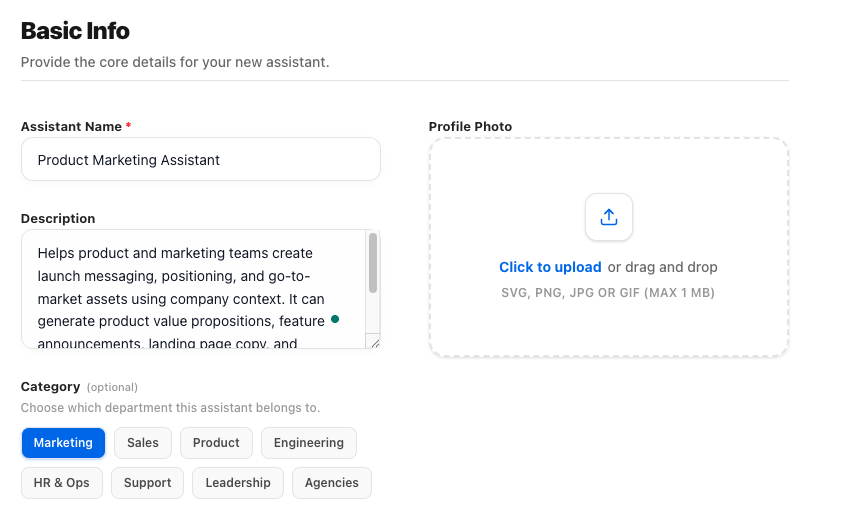
1) Basic info

Give your assistant a clear name and purpose so everyone knows when and how to use it. This sets expectations before the first question is even asked.
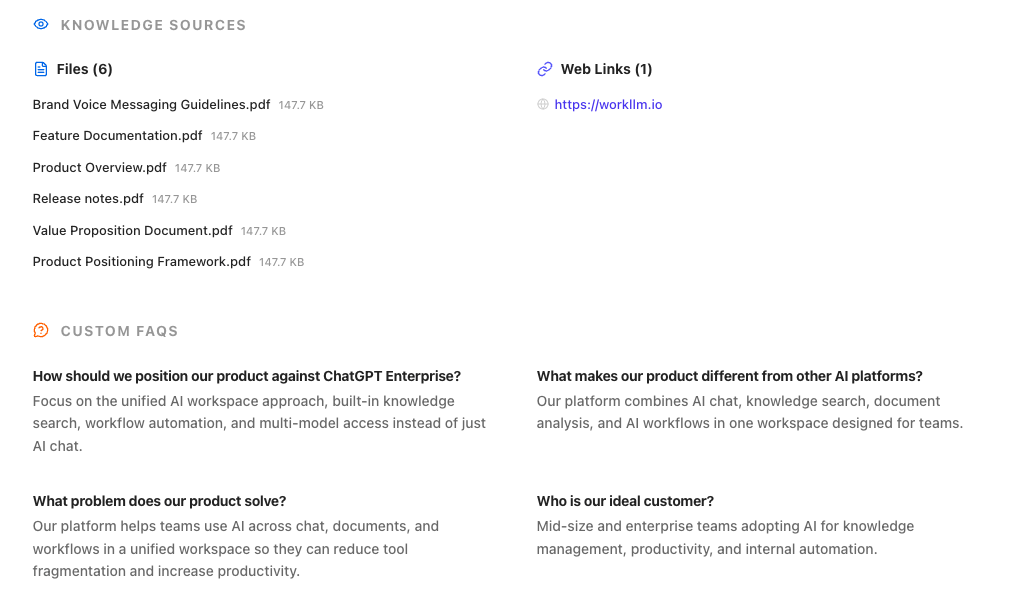
2) Knowledge sources

Connect documents, links, FAQs, or tools your assistant should rely on. The assistant answers based on your knowledge — not generic internet guesses

3) Basic info

Give your assistant a clear name and purpose so everyone knows when and how to use it. This sets expectations before the first question is even asked.

4) Knowledge sources

Connect documents, links, FAQs, or tools your assistant should rely on. The assistant answers based on your knowledge — not generic internet guesses

FAQs

WorkLLM can create, read, update, and transition issues; manage epics and links; help with sprint and board operations; and generate summaries and status reports from your Jira data—through simple natural language prompts. This builds on Jira’s role as a central hub for planning and tracking work.

Yes. WorkLLM is designed to work across Jira Software projects, including classic and next‑gen/“team‑managed” projects, which are built to let teams configure workflows and features independently.

No. WorkLLM operates within your existing Jira configuration. It can execute actions allowed by your Jira permissions (like transitioning issues or editing fields), but it doesn’t change workflows, schemes, or global project configurations on its own.

WorkLLM uses your own Jira user account via secure API access. It can only see and do what your Jira permissions allow—if you can’t view a project or edit a field in Jira, neither can WorkLLM. Jira’s native permission model and project roles remain the source of truth.

Yes. Within the limits of your Jira permissions, you can ask WorkLLM to start/complete sprints, move issues between columns, reorder issues, and get board-level summaries, aligning with Jira’s agile planning and tracking features.

WorkLLM can create and update epics, link stories or tasks under them, and summarize roadmap progress—especially useful with Jira’s roadmap features in next‑gen (team-managed) projects.

No. Project-level administration (creating/deleting projects, changing schemes, etc.) remains in Jira’s admin UI. WorkLLM focuses on day‑to‑day work management inside projects—issues, sprints, epics, and reporting.

WorkLLM may temporarily process and cache Jira data to fulfill your requests (e.g., when generating summaries or status reports), but data use is scoped to your workspace and not repurposed for other customers. Long‑term retention and logs follow your workspace and compliance settings.

No, not automatically. Data surfaced via WorkLLM is only visible in the context where it’s requested (e.g., your private chat or a shared space). Underlying visibility still follows Jira’s own permissions—users cannot see issues or projects they don’t have access to in Jira.

Each person using the integration needs a standard Jira account with the appropriate product license (e.g., Jira Software). There is typically no separate Atlassian charge for enabling next‑gen features or basic roadmap functionality, though your WorkLLM plan may govern how many Jira users or actions are supported.

Data & Permissions

WorkLLM connects to Jira using only the permissions required for issue work:

  • Read issues, projects, boards, and basic configuration metadata
  • Create new issues in projects you specify
  • Update issue fields, comments, and status only when requested
  • Add comments or internal notes on your behalf

How Data Is Used

When you run a Jira command:

  • Issue and project data is retrieved securely through Jira’s API
  • Content is processed to draft tickets, summaries, updates, or reports
  • The result is shown in your workspace chat and, when approved, synced back to Jira
  • No issue is created, transitioned, or edited without explicit confirmation

Security Deep Dive

  • Secure authentication using API tokens or OAuth (depending on your Jira setup)
  • Actions are performed under your Jira account’s existing permissions
  • No bulk destructive operations (like mass delete or project removal)
  • Access tokens can be revoked anytime from Jira or WorkLLM

Similar Integrations

Slack

By: WorkLLM

Search conversations, summarize threads, and automate updates from Slack directly through chat.

Notion

By: WorkLLM

Access, search, and update your Notion workspace through chat — find knowledge, summarize documents, and manage pages without switching tools.

Google Drive

By: WorkLLM

Find, summarize, compare, and work with your Google Drive files directly through chat.

Google Calendar

By: WorkLLM

Plan, schedule, and prepare for Google Calendar meetings directly through chat — without switching tabs.

GMail

By: WorkLLM

Work with your inbox through chat — summarize, search, draft, and reply instantly

Happy Customers

Customer satisfaction is our major goal. See what our customers are saying about us.