Google Drive

By: WorkLLMFind, summarize, compare, and work with your Google Drive files directly through chat.

Access Controls

Security

Permissions

Overview

WorkLLM connects securely to Google Drive so you can interact with your documents the same way you interact with people — through conversation. Instead of browsing folders, opening files, or copying content across tools, you ask WorkLLM to retrieve, summarize, analyze, or compare documents directly from chat. Every Drive interaction is explicit, permission-based, and scoped to what you authorize making document work faster, clearer, and fully governed.

Features

Natural language file search

Find any document, sheet, or slide in Google Drive just by describing its content, owner, or timeframe in chat.

Instant Document Summaries

Get concise, AI-generated summaries of long docs, proposals, specs, or research files stored in Drive.

In-place Content Drafting

Ask WorkLLM to draft or improve content for Docs, Sheets, or Slides and save or update files directly in Drive.

Cross Workspace Knowledge Search

Search across Drive plus other connected tools (like Gmail or Jira) in a single natural-language query.

Chat-based File Organization

Rename files, move them between folders, and apply basic structure using simple chat commands.

Secure Sharing Workflows

Generate share links, adjust access (view/comment/edit), and share files with teammates without leaving chat.

Use Cases with examples

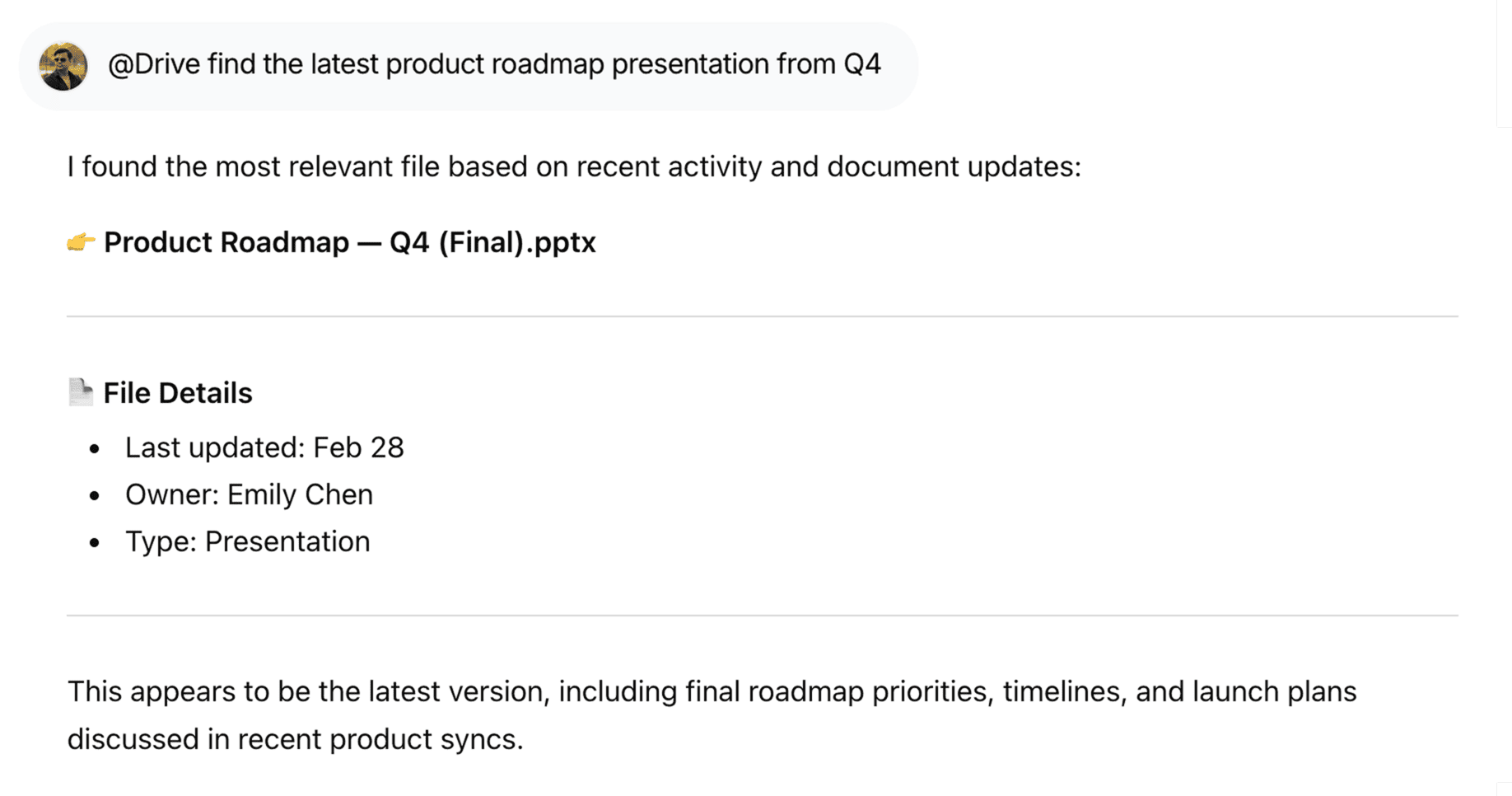
Google Drive - Find Files | WorkLLM

Find Files Instantly Across Drive

Locate important documents in seconds using @Drive find the latest product roadmap presentation from Q4, without digging through folders.

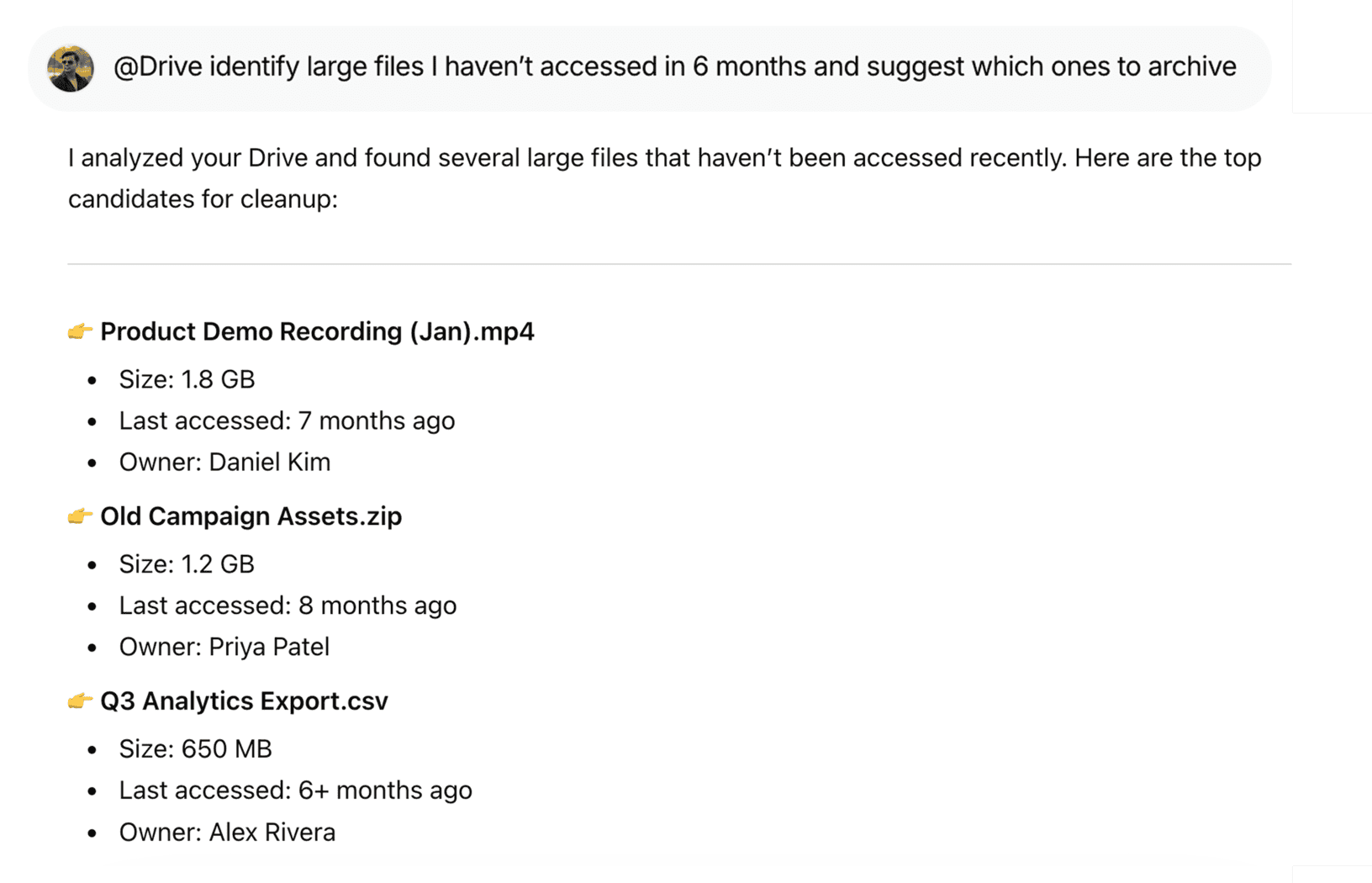
Google Drive - Identify & Clean Up | WorkLLM

Identify and Clean Up Unused Files

Keep your storage organized with @Drive identify large files I haven’t accessed in 6 months and suggest which ones to archive.

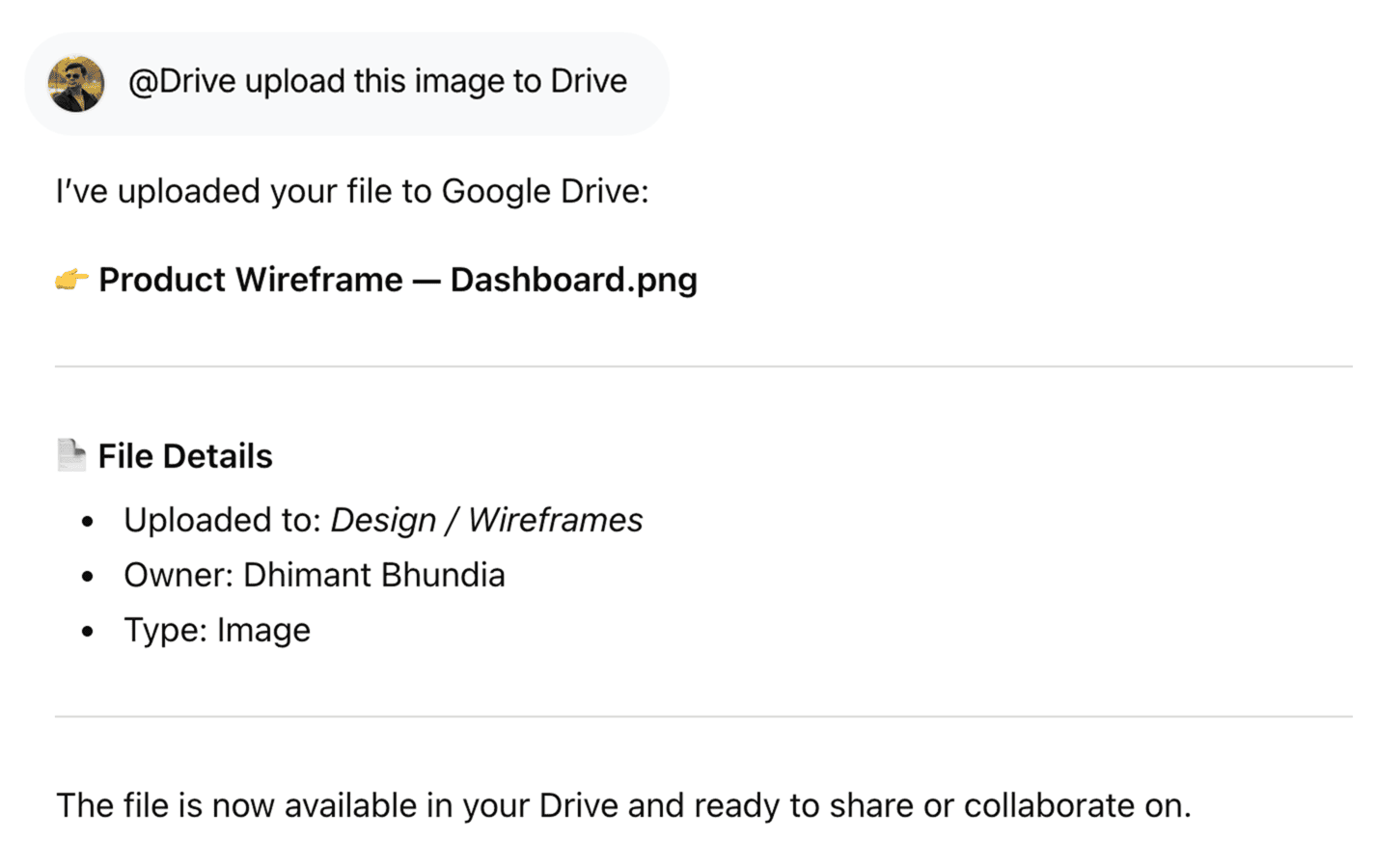
Google Drive - Upload Files |WorkLLM

Upload Files Directly from Chat

Save files to Drive without switching tabs using @Drive upload this image to Drive, making file management seamless.

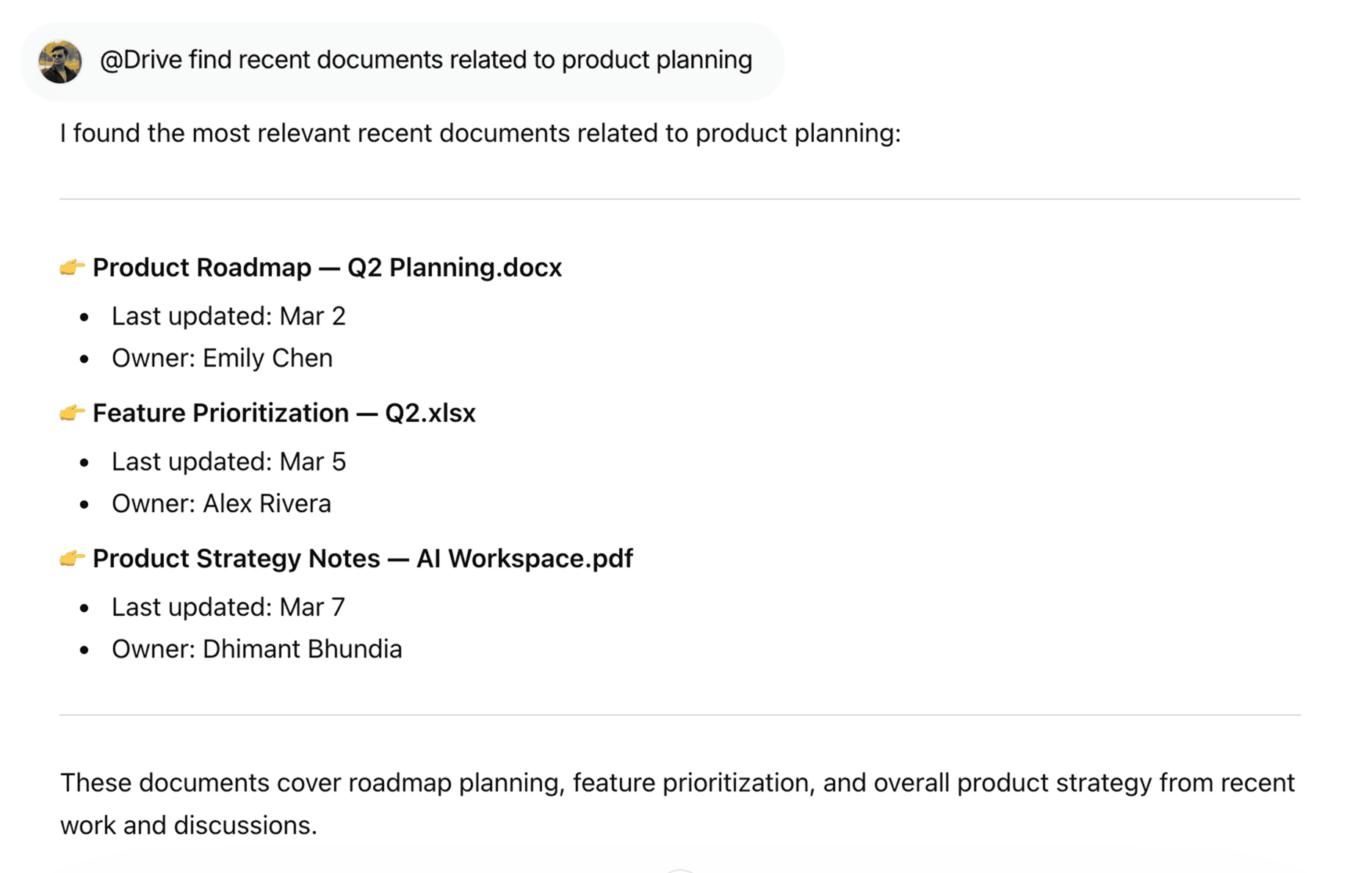
Google Drive - Surface Relevant Document Faster | WorkLLM

Surface Relevant Documents Faster

Quickly retrieve the most relevant files using @Drive find recent documents related to product planning, so you always have the right context at hand.

FAQs

WorkLLM can search for files, read file metadata, open file contents when needed, summarize documents, help draft or improve content, organize files (rename/move), and manage sharing settings—always based on your explicit requests in chat.

The Drive integration technically allows access to files your Google account can see, but WorkLLM only reads and processes the specific files it needs to complete your request (for example, documents returned by a search or that you explicitly reference).

Yes—if you grant edit permissions, WorkLLM can create new files and update existing Docs, Sheets, or Slides when you ask it to (e.g., “create a new doc with this outline” or “update this spec with these bullet points”). It never edits content on its own.

No. WorkLLM only renames, moves, or organizes files when you explicitly ask it to, such as “move this file to the ‘Specs’ folder” or “rename this doc to ‘Q2 Roadmap’.”

No, your personal Google Drive remains private. Teammates only see files they already have access to (e.g., shared drives or shared folders). WorkLLM respects Google Drive’s native permissions and never bypasses them.

WorkLLM may temporarily process and cache file content to fulfill your request (for example, summarizing a doc or drafting edits), but it does not repurpose your files for other users or unrelated products. Storage and retention are governed by your workspace policies.

Once you revoke access from Google or disconnect Drive inside WorkLLM, WorkLLM can no longer read, search, or modify your files. Any content already created (like summaries or new docs) remains, but live access to Drive stops immediately.

Yes. If your Google account has access to Shared Drives or team folders, WorkLLM can search, summarize, and organize those files as well—still honoring the same permissions and access controls defined in Google Drive.

Yes. WorkLLM connects to Google Drive via secure OAuth, uses encrypted connections, and follows least‑privilege access. It only requests the scopes needed to read, search, create, and update files according to your instructions.

You can control access at the source—through Google Drive’s sharing and permissions—and by how you use WorkLLM. For sensitive content, you can keep files in restricted folders or accounts and simply avoid referencing or searching them via WorkLLM.

Data & Permissions

WorkLLM requests only the permissions needed to work with your files:

  • Read file metadata such as title, type, owner, and last modified time
  • Read file content only when you open, reference, or connect it
  • Create new documents, spreadsheets, or files on your behalf
  • Update existing files only when explicitly requested
  • Delete files only if explicitly confirmed

How Data Is Used?

When you run a Drive command:

  • File metadata or content is retrieved securely through Google’s OAuth authorization 
  • Content is processed to generate summaries, extracts, drafts, or structured insights
  • Outputs are returned into your workspace chat or written back to the selected file
  • No file is created, modified, or moved without explicit confirmation

Security Deep Dive

  • OAuth-based secure authentication via Google 
  • User-level access scoped to your Drive and shared items you already have access to
  • No automatic mass edits, moves, or deletions
  • Access can be revoked anytime from your Google account or WorkLLM

Similar Integrations

Slack

By: WorkLLM

Search conversations, summarize threads, and automate updates from Slack directly through chat.

Notion

By: WorkLLM

Access, search, and update your Notion workspace through chat — find knowledge, summarize documents, and manage pages without switching tools.

Jira

By: WorkLLM

Create, review, and manage Jira work through chat — without breaking focus.

Google Calendar

By: WorkLLM

Plan, schedule, and prepare for Google Calendar meetings directly through chat — without switching tabs.

GMail

By: WorkLLM

Work with your inbox through chat — summarize, search, draft, and reply instantly

Happy Customers

Customer satisfaction is our major goal. See what our customers are saying about us.