Google Calendar

By: WorkLLMPlan, schedule, and prepare for Google Calendar meetings directly through chat — without switching tabs.
Access Controls

Security

Permissions

Overview

WorkLLM connects securely to Google Calendar so you can manage your schedule the same way you manage conversations. Instead of opening your calendar, scanning availability, or copying meeting details across tools, you interact with your calendar directly through chat using explicit commands. Every calendar interaction is intentional, permission-based, and traceable making WorkLLM a reliable, chat-first scheduling workspace.

Features

Natural language scheduling

Create and update events by simply describing who, what, when, and where in chat.

Smart Time Suggestions

Ask for the “earliest 45‑minute slot tomorrow afternoon” or “three options next week” and get conflict‑free suggestions.

Day & Week Summaries

Get concise breakdowns of your day or week, including context, attendees, and prep notes.

Easy Rescheduling

Move or cancel meetings in one line—WorkLLM finds new times and updates calendar invites for you.

Governance & Permission Based

WorkLLM respects your visibility, availability rules, and workspace governance policies.

Context Aware Workflows

Tie calendar actions to work context (e.g., tasks, emails, or projects) so scheduling becomes part of your broader workflow.

Use Cases with examples

Google Calendar - Daily Schedule Briefing | WorkLLM

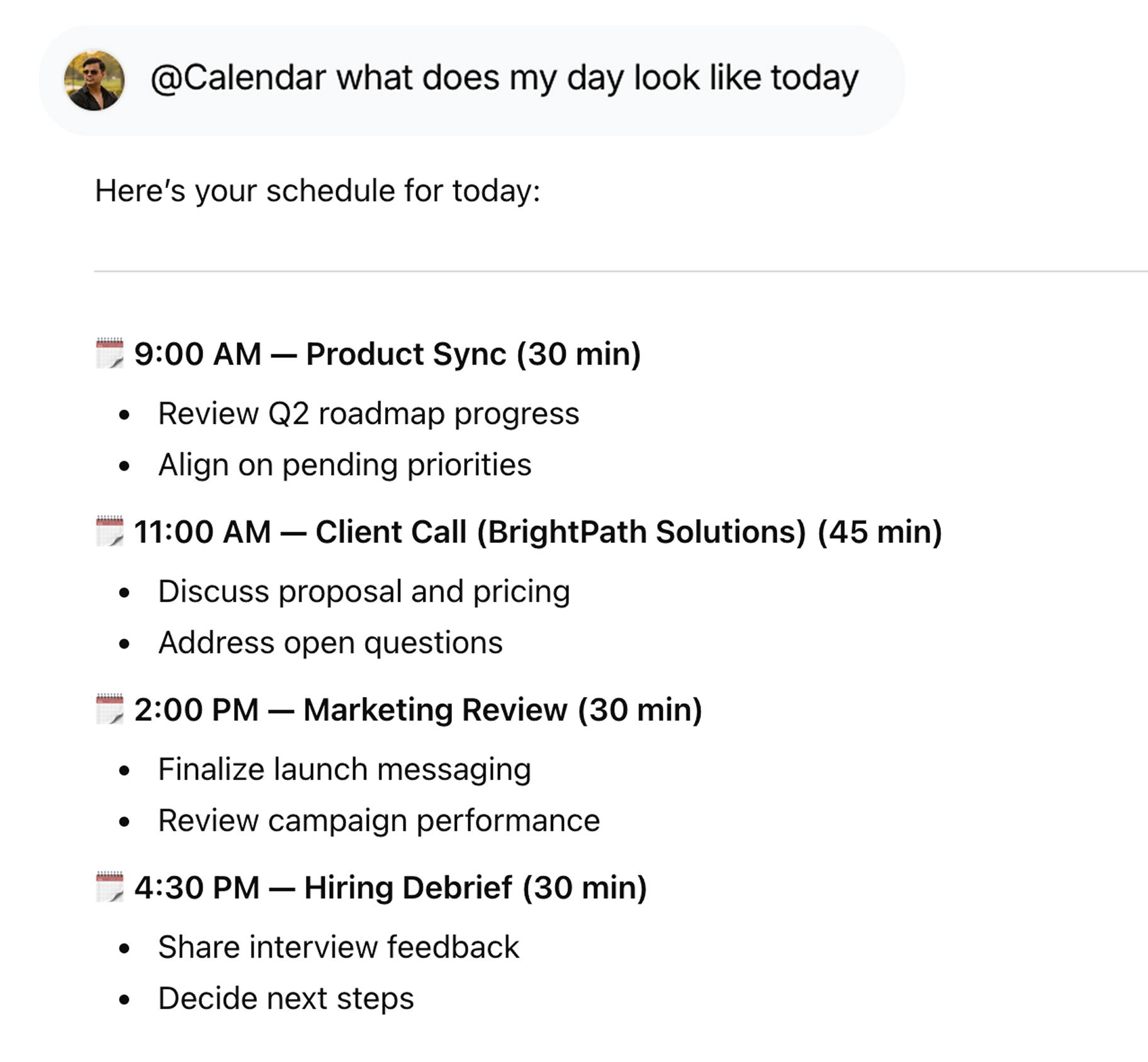
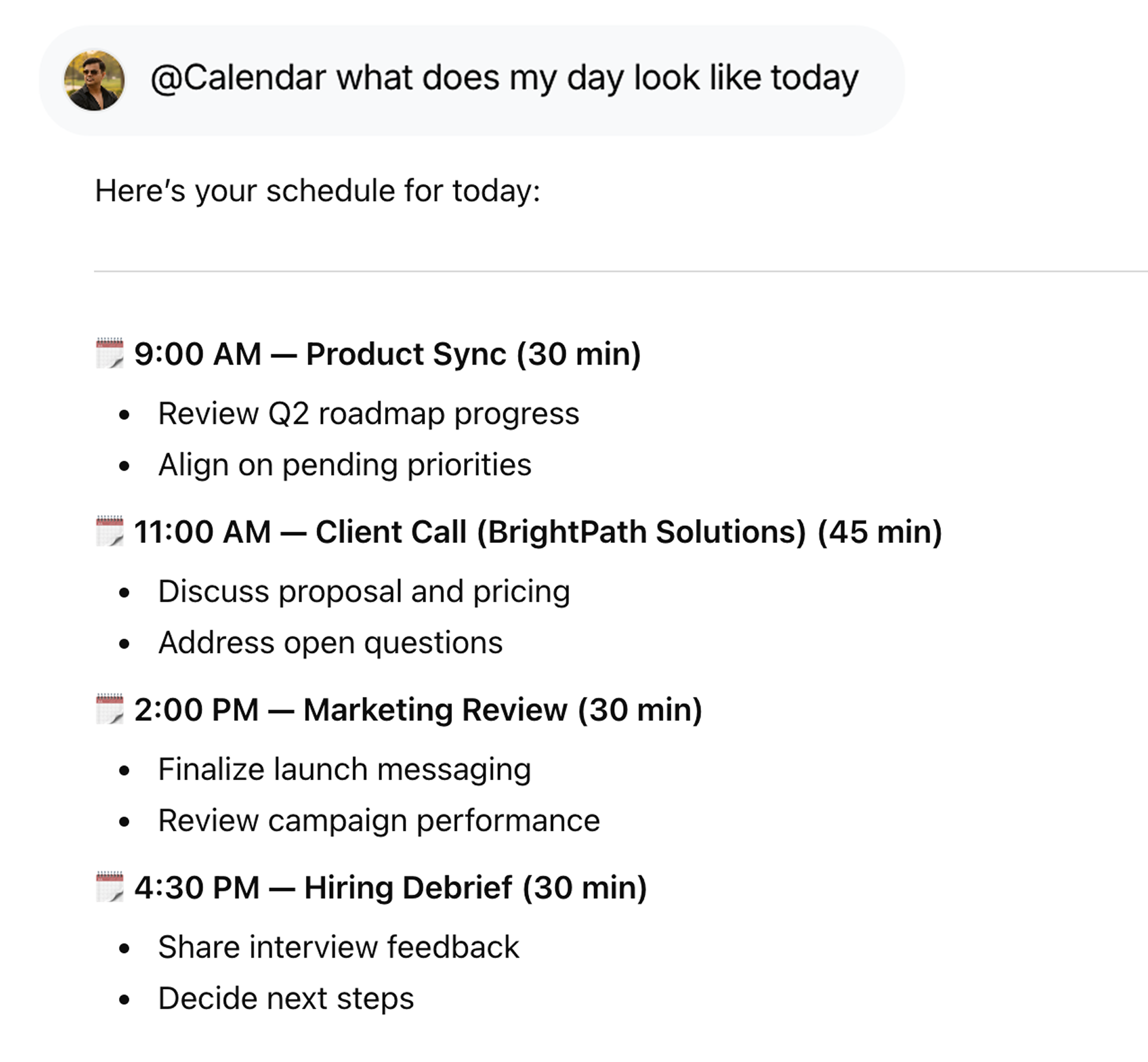
Get a Daily Schedule Brief

Start your day with a clear overview using @Calendar what does my day look like today, including meetings, agendas, and prep suggestions.
Google Calendar - Schedule Meeting | WorkLLM

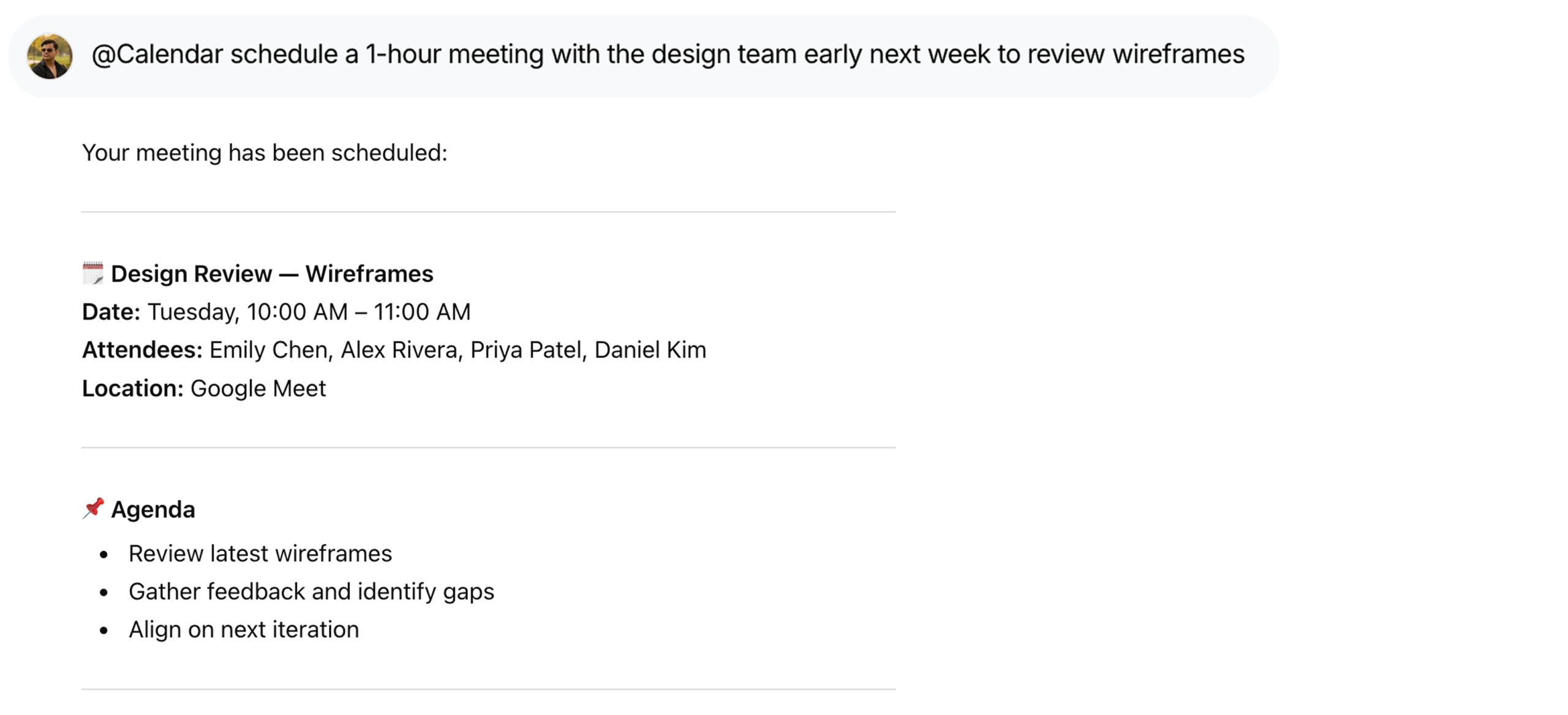
Schedule Meetings Effortlessly

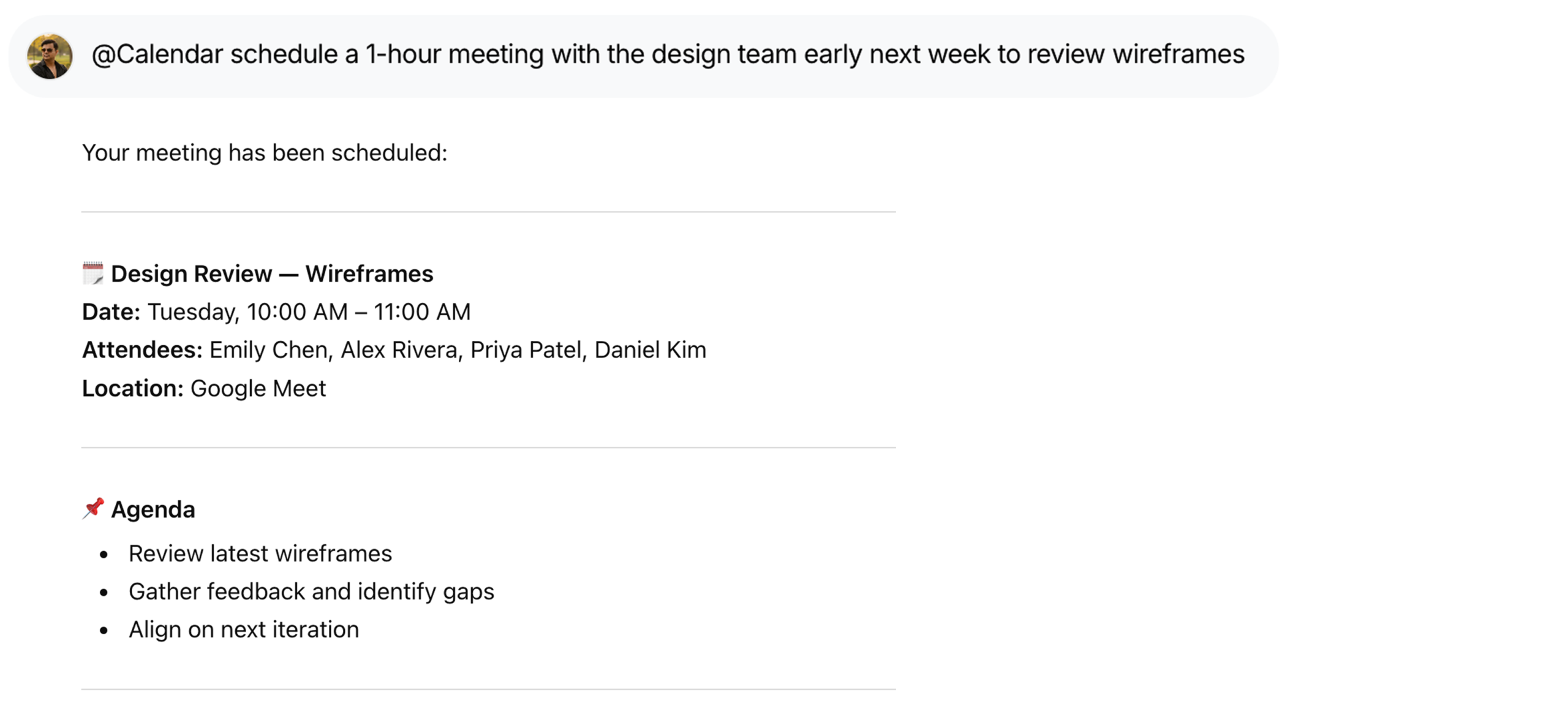
Set up meetings without back-and-forth using @Calendar schedule a 1-hour meeting with the design team early next week to review wireframes.
Google Calendar - Resolve Conflicts | WorkLLM

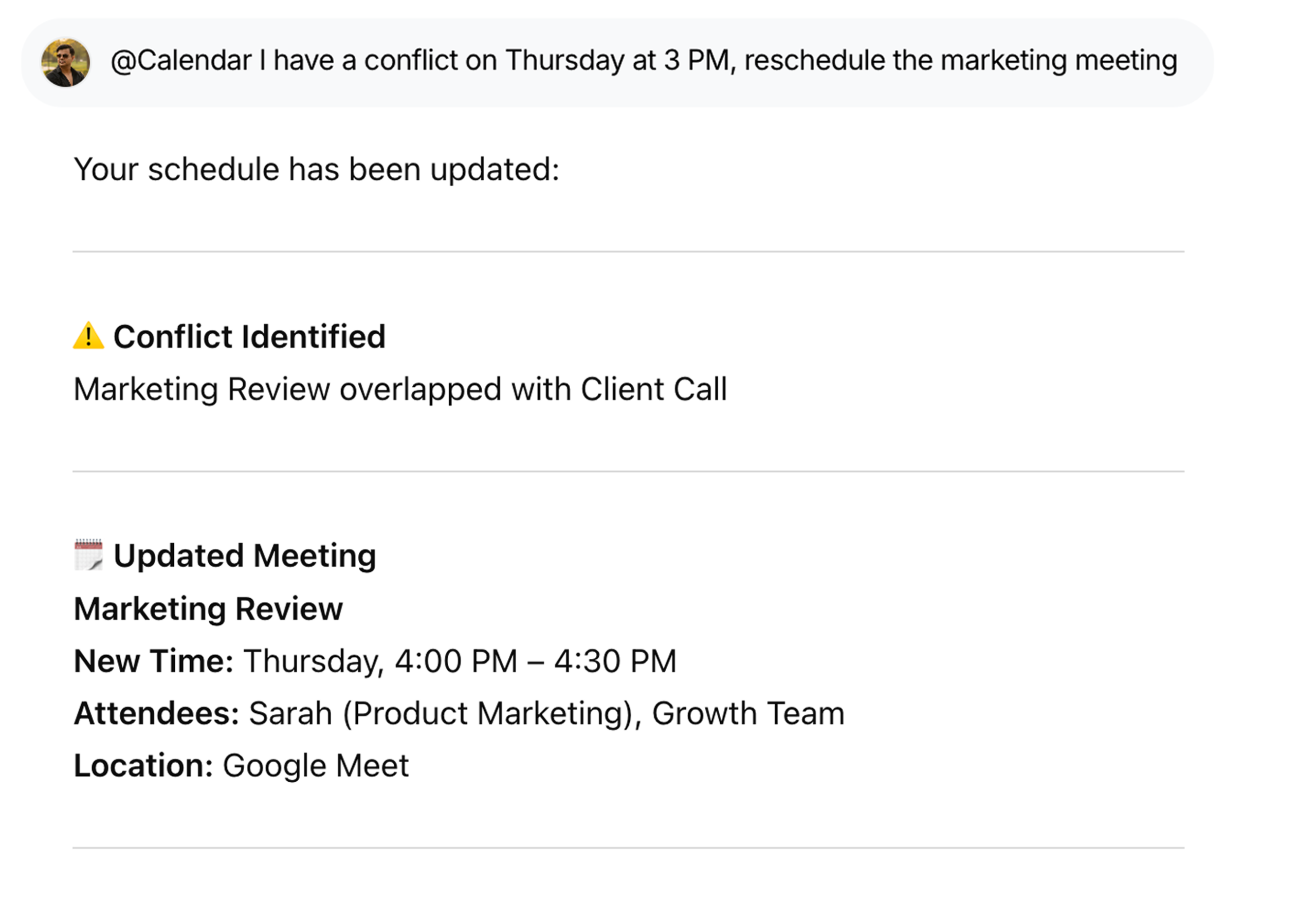
Resolve Calendar Conflicts

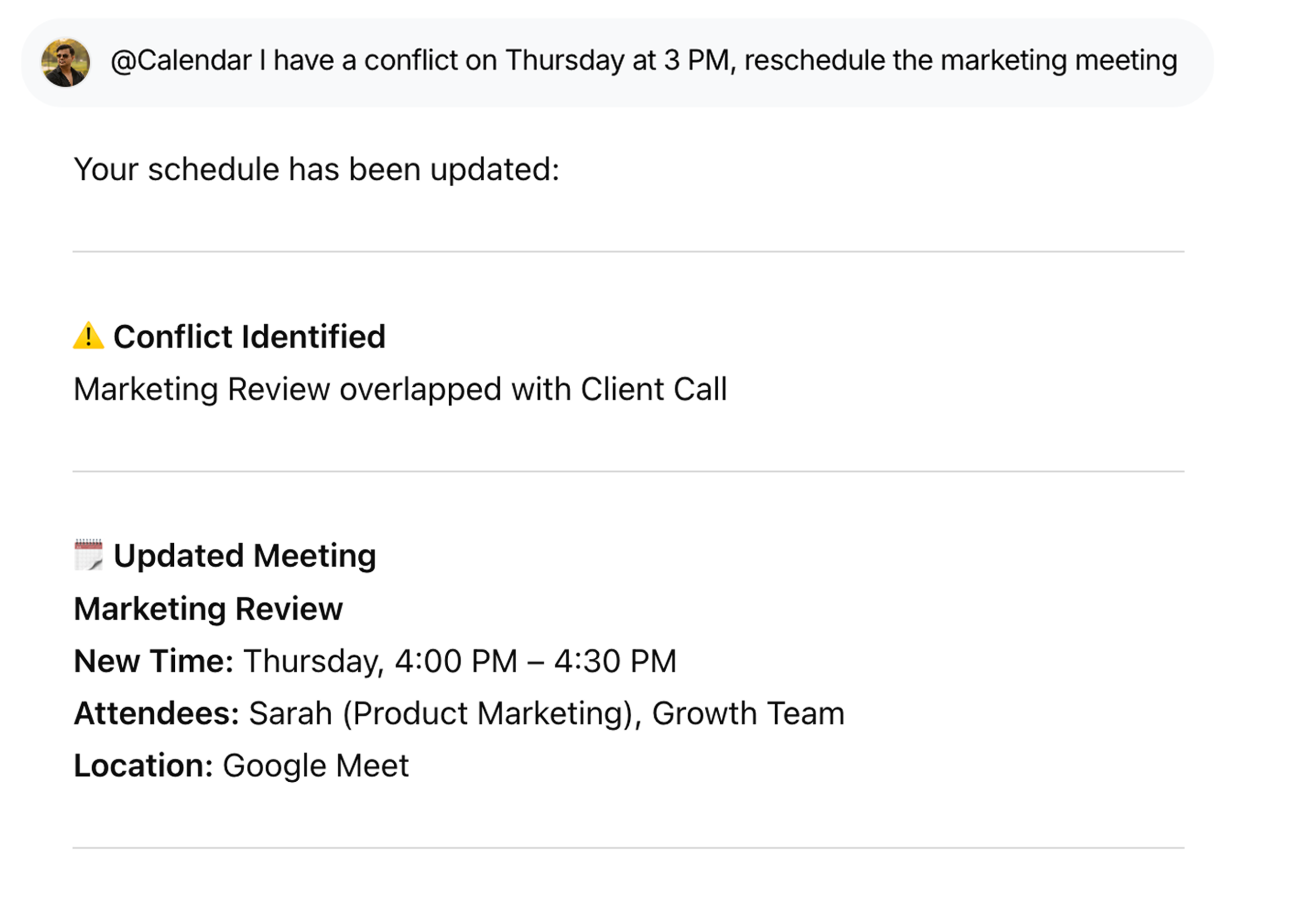
Fix overlaps quickly with @Calendar I have a conflict on Thursday at 3 PM, reschedule the marketing meeting—no manual coordination needed.
Google Calendar - Prepare for meetings | WorkLLM

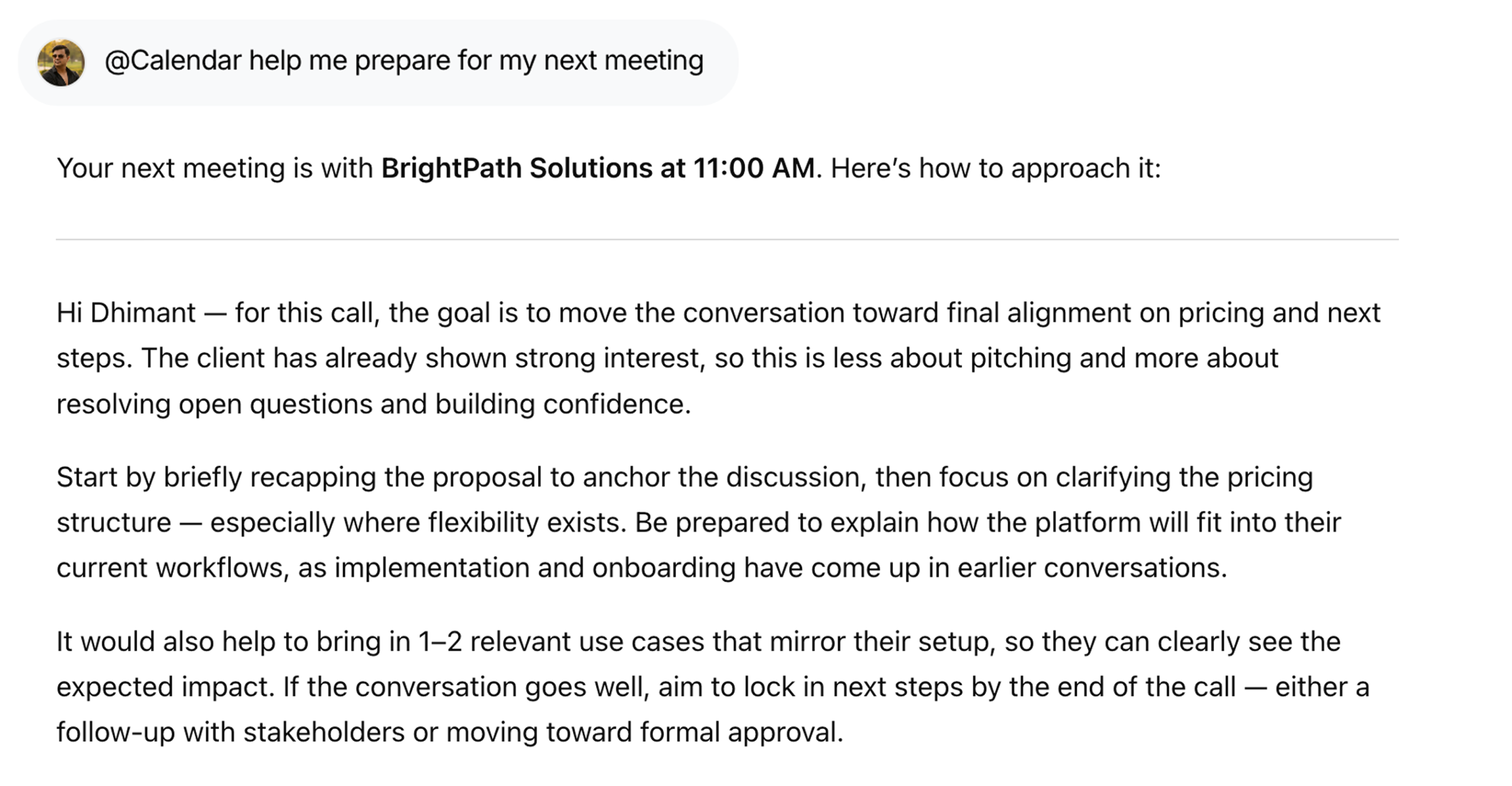
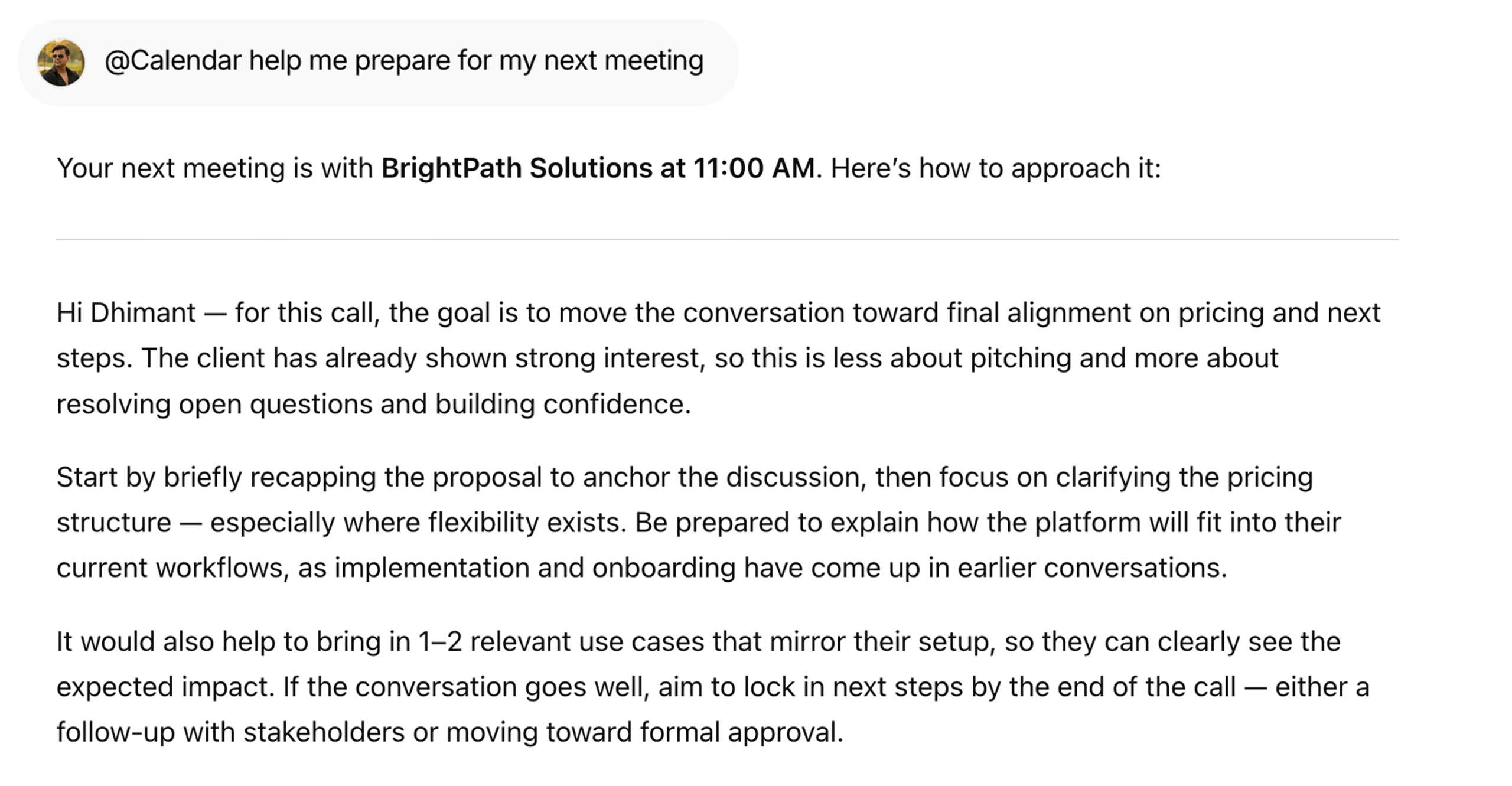
Prepare for Meetings Smarter

Get ready with context using @Calendar how should I prepare for my next meeting, including agenda insights and key discussion points.
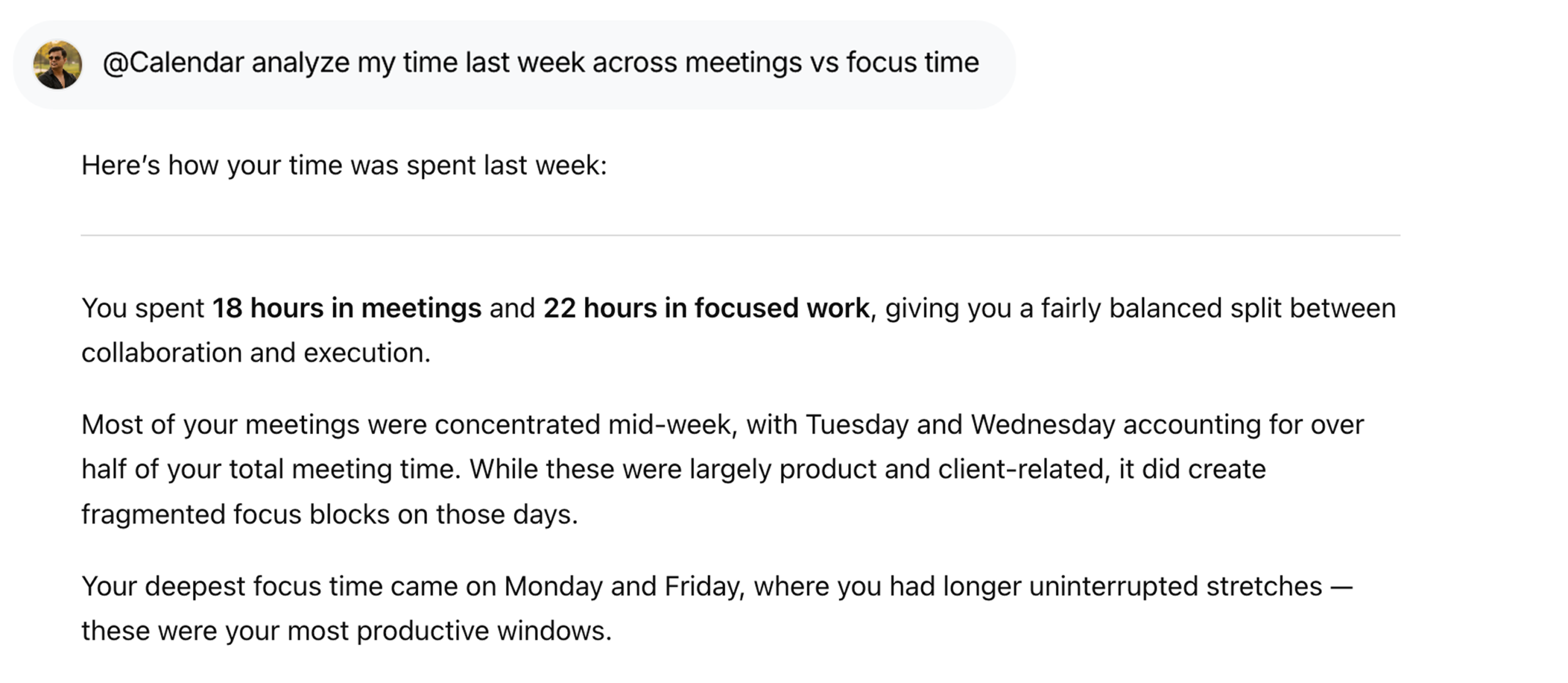
Google Calendar - Analyze Time Usage | WorkLLM

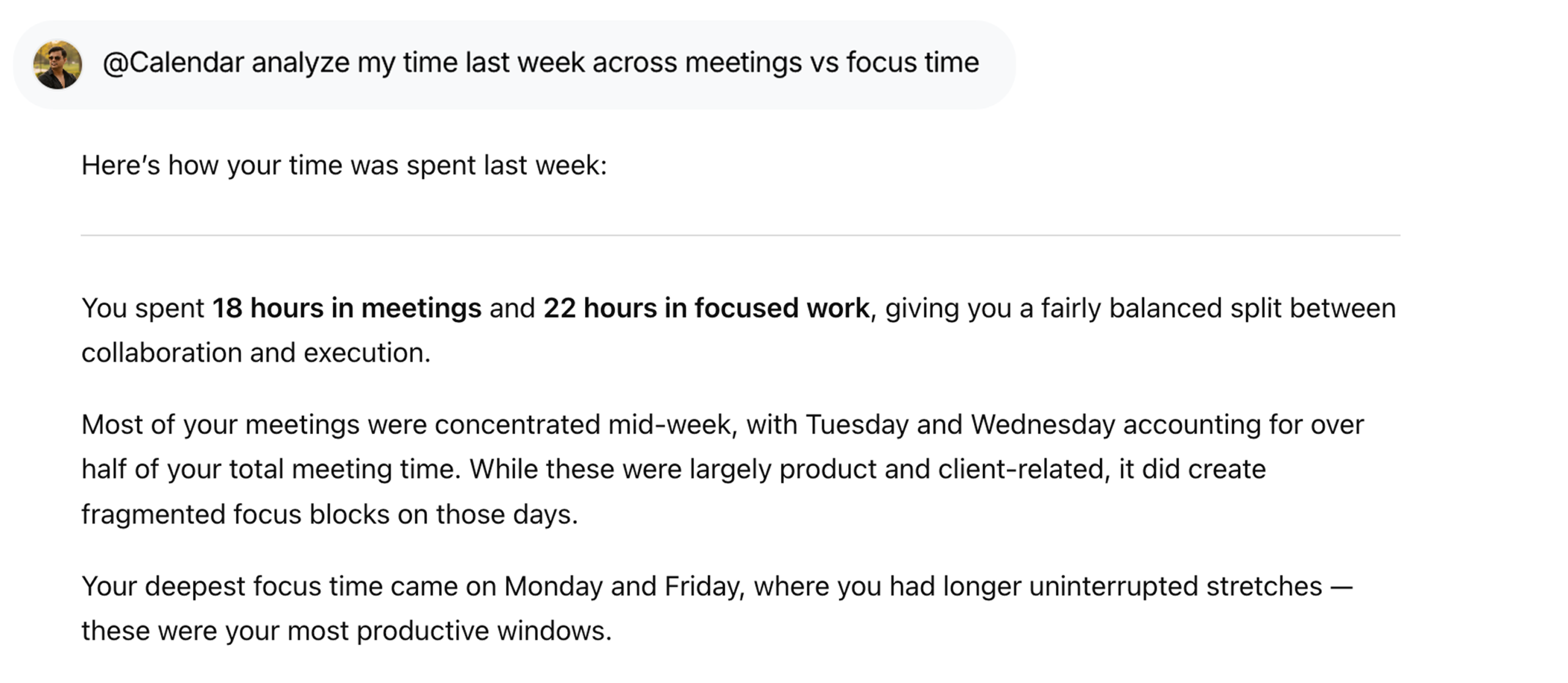
Analyze Your Time Usage

Understand where your time goes with @Calendar how much time did I spend in meetings last week vs focused work.
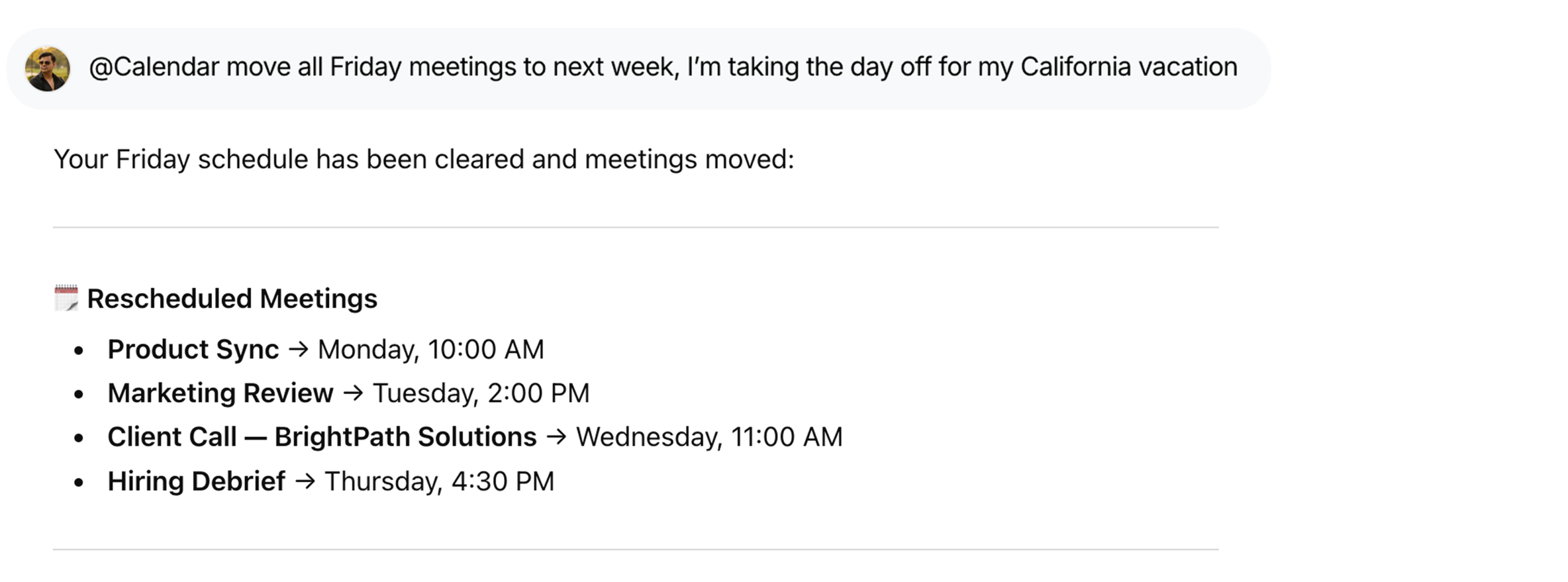
Google Calendar - Reschedule Bulk | WorkLLM

Reschedule Events in Bulk

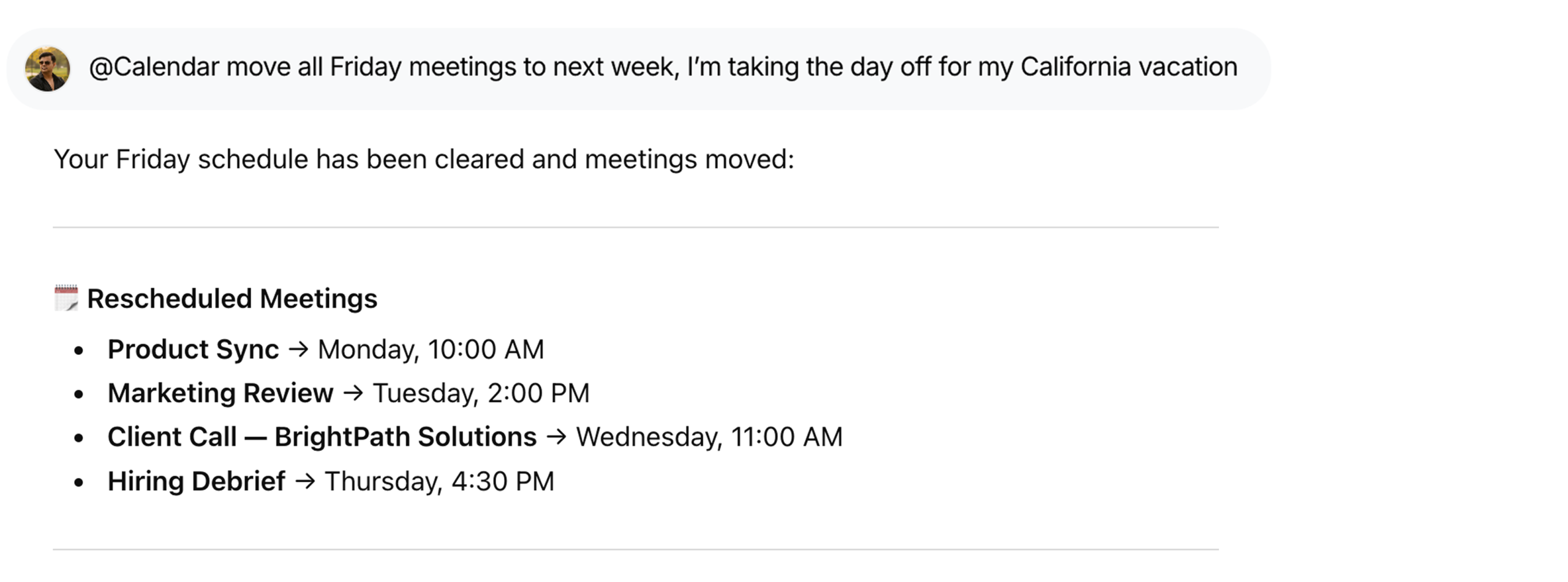
Adjust plans instantly using @Calendar move all Friday meetings to next week because I’m taking a day off for my California vacation

FAQs

WorkLLM can read your events, create new ones, update or delete existing events, and help you find available time slots based on your preferences and availability.

By default, WorkLLM only creates or updates events when you explicitly ask it to (e.g., “Schedule this meeting” or “Move this event”). You stay in control of every calendar change.

It can access the calendar you grant through Google’s OAuth permissions. You can choose which calendars to use, and WorkLLM will only read and modify events on those.

When you ask to “schedule a meeting with X,” WorkLLM creates a proper calendar invite and adds the attendees’ email addresses so they receive invitations and updates like any normal event.

No. WorkLLM never edits or deletes events unless you explicitly instruct it to (e.g., “Cancel my 4pm meeting” or “Move this to tomorrow at 11am”).

WorkLLM may temporarily retain event details to execute your requests (e.g., summarizing or following up on meetings), but data use is scoped to your workspace and governed by your retention settings. It is not repurposed for unrelated users or products.

No, not by default. Your calendar data remains private to your account unless you use a shared calendar or intentionally share specific information or summaries in team spaces.

Once you revoke access or disconnect the integration, WorkLLM can no longer read or update your events. Existing outputs (like summaries or notes) remain, but live calendar syncing stops immediately.

Data & Permissions

WorkLLM requests only the minimum permissions required to manage your calendar:

  • Read events and event details (title, time, attendees, location)
  • Read calendar metadata such as calendar name and time zone
  • Create new events on your selected calendar
  • Update or cancel events only when explicitly requested
  • Never accesses unrelated Google services (e.g., Gmail, Drive) through Calendar scopes 

How Data Is Used

When you run a Calendar command:

  • Event data is retrieved securely through Google’s OAuth authorization 
  • Details are processed to propose times, draft invites, or summarize your schedule
  • The result is returned inside your workspace chat for review
  • No event is created, changed, or cancelled without explicit confirmation

Security Deep Dive

  • OAuth-based secure authentication via Google 11
  • User-level access limited to your calendars
  • No automatic event changes or bulk edits
  • Access can be revoked anytime from your Google account or WorkLLM

Similar Integrations

Slack

By: WorkLLM

Search conversations, summarize threads, and automate updates from Slack directly through chat.

Notion

By: WorkLLM

Access, search, and update your Notion workspace through chat — find knowledge, summarize documents, and manage pages without switching tools.

Jira

By: WorkLLM

Create, review, and manage Jira work through chat — without breaking focus.

Google Drive

By: WorkLLM

Find, summarize, compare, and work with your Google Drive files directly through chat.

GMail

By: WorkLLM

Work with your inbox through chat — summarize, search, draft, and reply instantly

Happy Customers

Customer satisfaction is our major goal. See what our customers are saying about us.