Connect any app to your workflows using MCP
If an app isn’t on our integration list yet, you can still connect it through MCP and use it in your chats and AI agents, no waiting, no developer needed.
Connect beyond our integration library
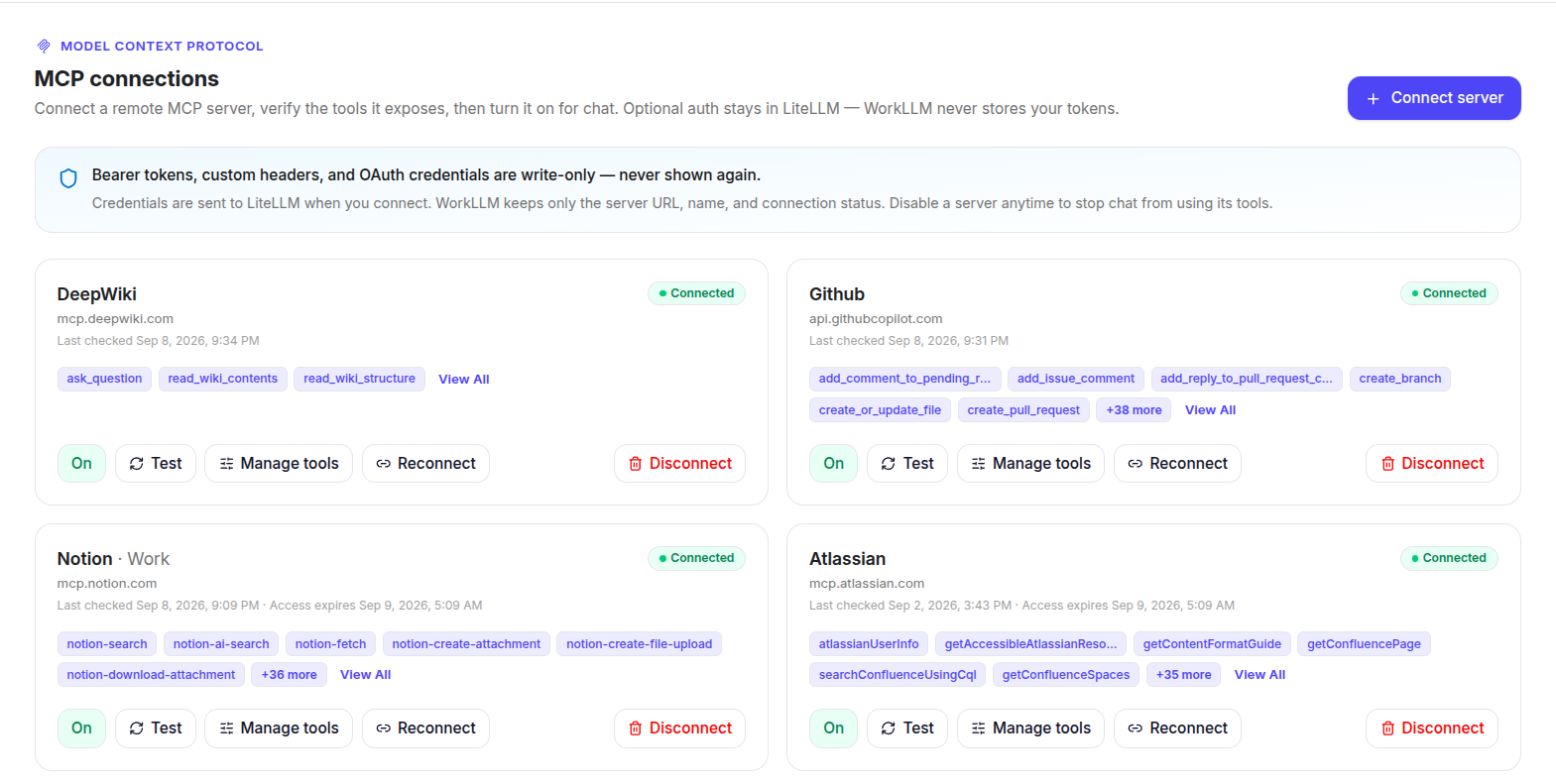
Add any app that supports MCP, control exactly what it can do, and decide where it’s used.
Connect any app yourself
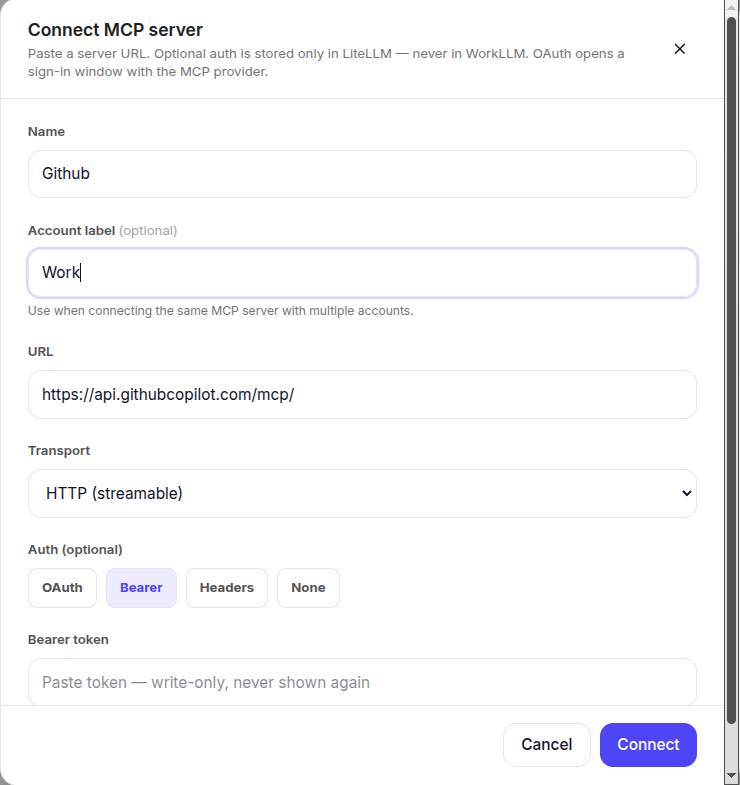
If an app supports MCP, add it in a few clicks. No developer needed & no waiting for us to build it. Sign in the way you normally would, and it’s ready to use.
Control exactly what a connected app can do
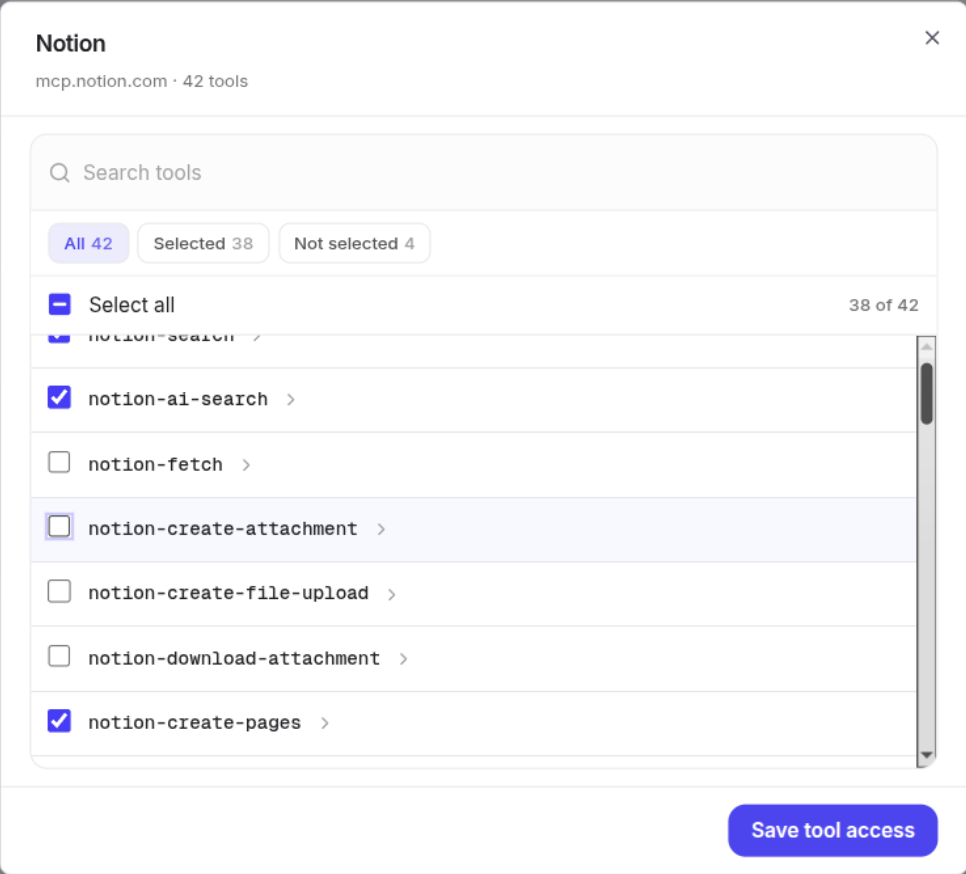
Some apps expose a lot once connected. You decide which specific actions are turned on, so nothing runs beyond what you’ve approved.
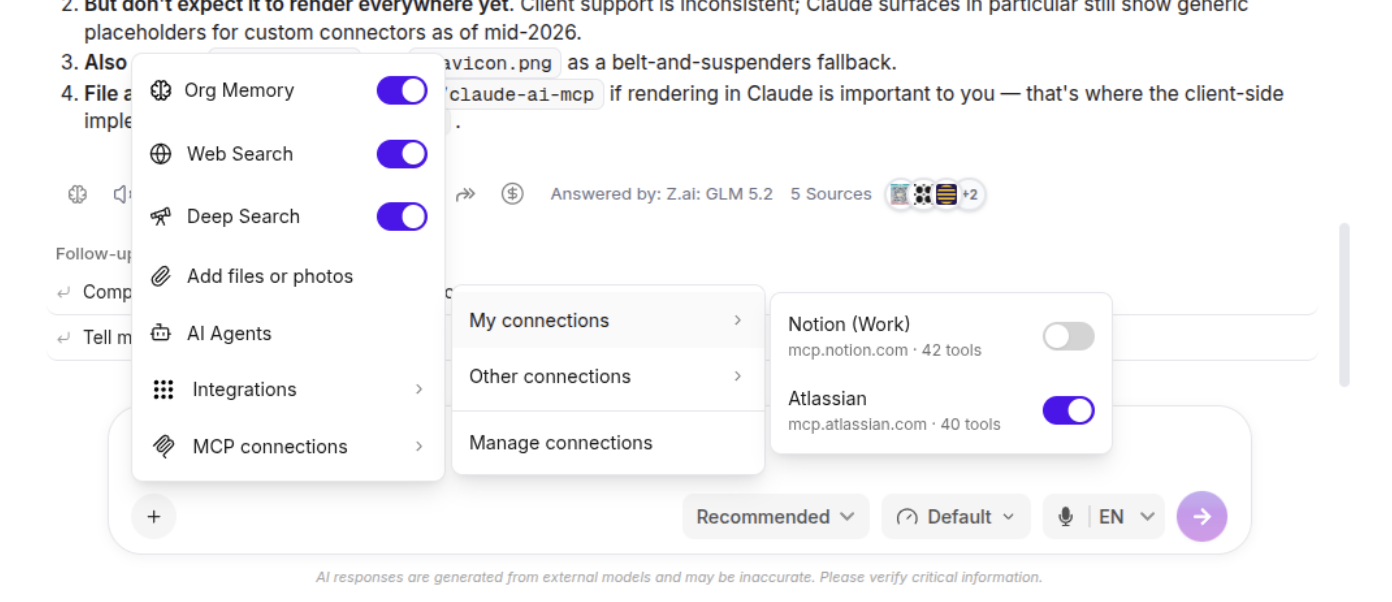
Turn a connection on or off per conversation
A connected app doesn’t have to be active everywhere. In any chat, choose which of your connected apps apply to that specific conversation.
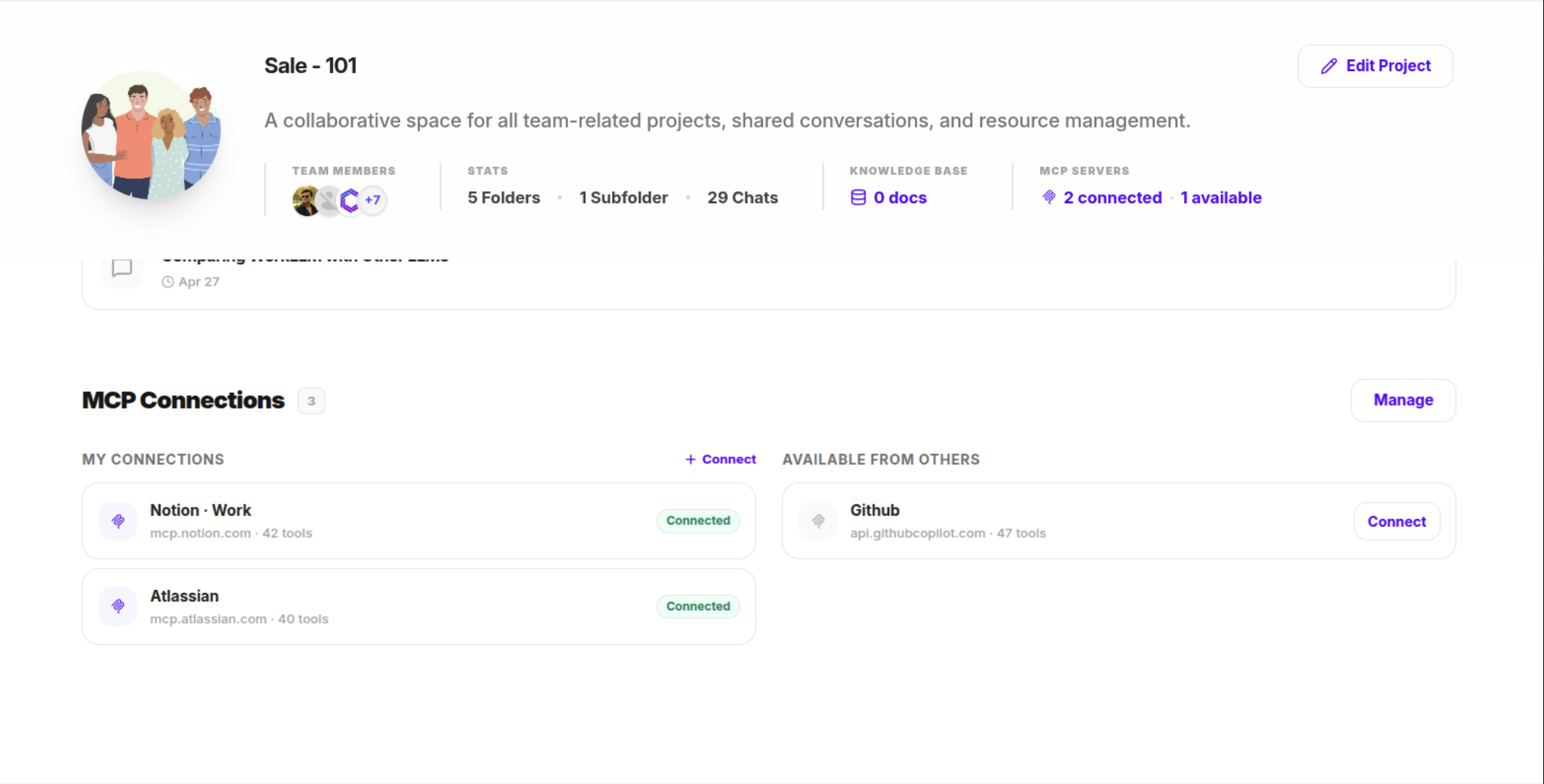
See what your teammates have already connected
On a shared project or thread, you’ll see which apps your teammates have connected through MCP, so you’re not guessing what’s available or setting up the same thing twice.
FAQs
What if the app I need isn't on your integration list?
If the app supports MCP (Model Context Protocol, an open standard for connecting apps to AI), you can connect it yourself. Add the app’s connection details and sign in the way you normally would, no developer, no waiting for us to build it. Once connected, it works in your chats and can be used by any AI agent you build.

Do I need any technical skills to connect an app this way?
No. If the app supports MCP, connecting takes a few clicks, add its details, sign in the way you normally would, and it’s ready.
Will my AI agents use a connected app automatically?
Yes. Once an app is connected through MCP, any AI agent you build can use it, you don’t have to connect it again for each one.
Can I control what a connected app is allowed to do?
Yes. You choose exactly what’s turned on for that app, so nothing runs that you haven’t approved.
Does my team share the same connection, or does everyone connect separately?
Everyone connects separately, with their own login. On a shared chat, you’ll see which MCP connections your teammates have added and can add the same one yourself.
Can I turn an app off for one conversation without disconnecting it completely?
Yes. An app can stay connected to your account while being off for a specific chat. You choose what’s active where.
Is this as secure as your regular integrations?
Yes. The same security, encryption, and access controls that protect the rest of your WorkLLM workspace apply to MCP connections too.